Bash Scripting for Beginners: Your First Useful Script
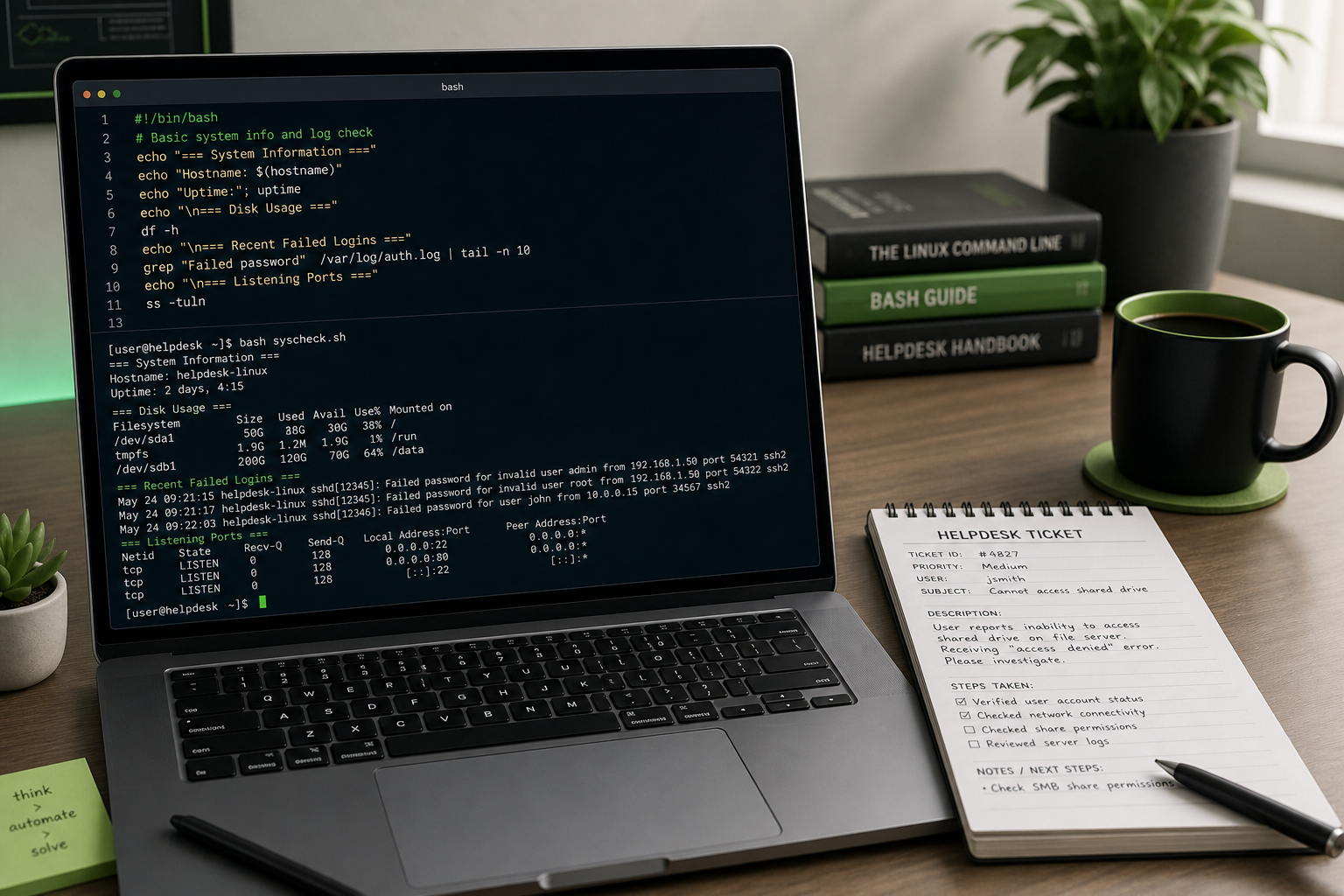
Bash scripting is just putting shell commands in a file so you can run them again without retyping everything. That is the beginner-friendly version. If you can run commands like pwd, df -h, grep, and journalctl, you can start writing small Bash scripts.
A script does not have to be fancy to be useful. In help desk and beginner sysadmin work, a good first script might collect basic system information before you update a ticket:
#!/bin/bash

echo "Hostname: $(hostname)"
echo "Kernel: $(uname -r)"
echo "Disk usage:"
df -h
Save that in a file, make it executable, run it, and you have your first tiny Linux troubleshooting tool. No framework. No giant automation platform. Just commands you already know, taped together in a repeatable way.
The trick is learning how to write scripts that are useful without becoming dangerous. A bad script can save you five seconds and create a two-hour cleanup. Very efficient, in the worst possible direction.
The short version
Here is a beginner Bash script you can build today:
#!/bin/bash

set -u

echo "Basic Linux check"
echo "================="
echo "Hostname: $(hostname)"
echo "Current user: $(whoami)"
echo "Kernel: $(uname -r)"
echo

echo "Disk usage:"
df -h

echo

echo "Memory usage:"
free -h

echo

echo "Recent failed systemd units:"
systemctl --failed --no-pager
It answers normal support questions:
- What machine am I on?
- Who am I running as?
- What kernel is this box using?
- Is the disk full?
- Is memory obviously tight?
- Are any systemd services failed?
That is enough for a first script. Start small, make it readable, and avoid making changes to the system until you trust your own process.
What Bash actually is
Bash is a shell. It reads commands, runs programs, expands variables, handles pipes and redirects, and gives you the prompt you type into on many Linux systems.
When you type this manually:
ls -lah /var/logBash interprets it and runs ls with those flags and that path.
When you put the same command into a file:
ls -lah /var/logBash can run it from the file too. That file is a script.
A Bash script is useful when you have a repeatable sequence:
hostname
df -h
free -h
systemctl --failed --no-pager
Instead of remembering and typing the same four commands every time a Linux VM gets grumpy, you put them in a script and run one command.
This is where scripting starts to feel practical for help desk work. You are not trying to become a full-time automation engineer on day one. You are trying to stop manually doing the same boring diagnostic steps while a ticket timer quietly ruins the mood.
Create your first script file
Make a practice directory:
mkdir -p ~/scripts
cd ~/scripts
Create a new file:
nano basic-check.shAdd this:
#!/bin/bash

echo "Hello from my first Bash script"
echo "I am running on: $(hostname)"
echo "The current directory is: $(pwd)"
Save and exit.
Now run it with Bash:
bash basic-check.shYou should see output similar to:
Hello from my first Bash script
I am running on: test-vm-01
The current directory is: /home/stetson/scripts
If that worked, congratulations: you wrote a script. Not the kind that gets a conference talk, but the useful kind that starts replacing sticky-note command lists.
What the shebang line does
The first line is called a shebang:
#!/bin/bashIt tells Linux which interpreter should run the file when you execute it directly.
Without the shebang, you can still run the script like this:
bash basic-check.shWith the shebang and execute permission, you can run it like this:
./basic-check.shThat is the normal script-running pattern you will see in documentation and internal runbooks.
On some systems you will also see this version:
#!/usr/bin/env bashThat asks the system to find Bash from the current environment. For beginner scripts on typical Linux boxes, #!/bin/bash is fine. If you start writing portable scripts across different Unix-like systems, you can learn the tradeoffs later.
Make the script executable
Right now the file may not have execute permission. Check it:
ls -l basic-check.shYou might see something like:
-rw-r--r-- 1 stetson stetson 129 May 15 09:00 basic-check.shThe important part is the first chunk: -rw-r--r--. There is no x, so the file is not executable.
Add execute permission for your user:
chmod u+x basic-check.shCheck again:
ls -l basic-check.shNow it should look more like:
-rwxr--r-- 1 stetson stetson 129 May 15 09:01 basic-check.shRun it directly:
./basic-check.shThe ./ matters. It means “run the file named basic-check.sh in the current directory.” Beginners often forget that and type:
basic-check.shThen Bash says command not found, because the current directory is usually not in your command search path. Annoying, but intentional. Linux is trying to avoid running random files just because you happen to be standing near them.
Add useful support checks
Now make the script do something closer to real work:
#!/bin/bash

set -u

echo "Basic Linux support check"
echo "========================="
echo "Hostname: $(hostname)"
echo "User: $(whoami)"
echo "Working directory: $(pwd)"
echo "Kernel: $(uname -r)"
echo

echo "Disk usage:"
df -h

echo

echo "Memory usage:"
free -h

echo

echo "Failed services:"
systemctl --failed --no-pager
Run it:
./basic-check.shThis is a nice first script because it is read-only. It checks things, prints output, and does not change files, restart services, delete anything, or edit config. Read-only scripts are a great place to learn because the blast radius is low.
That matters at work. If a user reports that an internal app is slow, a beginner-friendly check might be:
- confirm you are on the right server;
- check disk usage;
- check memory;
- look for failed services;
- then decide what to inspect next.
That is better than immediately running whatever command you found in a forum from 2014 with sudo in front of it. The internet has many confidence-inspiring ways to ruin your afternoon.
Use variables so scripts are easier to change
A variable stores a value you want to reuse.
Add this near the top:
REPORT_NAME="basic-check-report.txt"Then you can use it later:
echo "Writing report to $REPORT_NAME"A simple example:
#!/bin/bash

set -u

REPORT_NAME="basic-check-report.txt"

echo "Writing report to $REPORT_NAME"
echo "Hostname: $(hostname)" > "$REPORT_NAME"
echo "Kernel: $(uname -r)" >> "$REPORT_NAME"
df -h >> "$REPORT_NAME"

echo "Done. Review $REPORT_NAME before pasting anything into a ticket."
Notice the redirects:
>creates or overwrites the file.>>appends to the file.
That difference matters. If you use > when you meant >>, you can overwrite earlier output. If you use redirects against the wrong file, you can overwrite something more important. This is why beginners should practice scripts in a safe directory with boring test files before touching production paths.
Also notice the quotes:
"$REPORT_NAME"Quoting variables prevents weird behavior when values contain spaces or special characters. The safest beginner habit is simple: quote variables unless you have a specific reason not to.
Accept a service name as an argument
Scripts become more useful when you can pass in information.
Create a script called check-service.sh:
nano check-service.shAdd this:
#!/bin/bash

set -u

SERVICE_NAME="$1"

echo "Checking service: $SERVICE_NAME"
systemctl status "$SERVICE_NAME" --no-pager
Make it executable:
chmod u+x check-service.shRun it with a service name:
./check-service.sh sshThe $1 means “the first argument passed to the script.” If you run:
./check-service.sh nginxthen $1 is nginx.
There is one problem: if you forget the argument, the script will be grumpy because set -u treats missing variables as an error. That is good, but we can make the error nicer.
Use this version:
#!/bin/bash

set -u

if [ $# -lt 1 ]; then
  echo "Usage: $0 <service-name>"
  exit 1
fi

SERVICE_NAME="$1"

echo "Checking service: $SERVICE_NAME"
systemctl status "$SERVICE_NAME" --no-pager
Now if you run it with no service name:
./check-service.shIt tells you how to use it instead of falling over like a printer during payroll week.
Understand exit codes
Linux commands return an exit code. A code of 0 usually means success. A non-zero code usually means something failed.
Try this:
ls /etc

echo $?
Then try something that should fail:
ls /not-a-real-directory

echo $?
Scripts can use exit codes to decide what to do next.
Example:
#!/bin/bash

set -u

TARGET="/var/log"

if [ -d "$TARGET" ]; then
  echo "$TARGET exists. Showing recent files:"
  ls -lah "$TARGET" | head
else
  echo "$TARGET does not exist on this system."
  exit 1
fi
That if [ -d "$TARGET" ] check asks whether the target exists and is a directory.
This habit is important. Before your script reads a file, check that it exists. Before it writes a report, check that the directory exists. Before it restarts a service, be absolutely sure you meant that service, on that machine, at that time.
Scripts do exactly what you wrote, not what you meant after coffee number two.
Beginner mistakes to avoid
1. Running scripts from the wrong directory
If your script uses relative paths like this:
cat logs/app.logit depends on where you run the script from. If you are in the wrong directory, it breaks or reads the wrong thing.
For beginner scripts, either use absolute paths:
cat /var/log/syslogor print your current directory while testing:
echo "Running from: $(pwd)"2. Forgetting quotes around variables
This is risky:
rm $FILE_NAMEThis is safer:
rm -- "$FILE_NAME"For your first scripts, avoid delete commands entirely. Learn with read-only checks and report files first. The rm example is here because you will see it in real scripts, not because you should immediately start automating deletion like a tiny chaos intern.
3. Hiding commands in aliases inside scripts
Aliases are handy in your terminal, but scripts should usually use the real commands. If your script depends on a personal alias from your .bashrc, it may work for you and fail for everyone else.
Bad script idea:
ll /var/logBetter:
ls -lah /var/logScripts should be boring and explicit. Boring scripts are easier to review, troubleshoot, and trust.
4. Starting with sudo
Do not put sudo everywhere just because one command complained. First understand what needs elevated permissions and why.
Reading basic system information usually does not require root. Restarting services, editing system config, changing ownership, and installing packages probably do.
If a script must use privileged commands, make that obvious in the name, comments, and usage instructions. A script named quick-check.sh should not secretly restart half the machine. That is how internal Slack channels get spicy.
A practical first script for help desk work
Here is a complete beginner script you can use as a learning project:
#!/bin/bash

set -u

REPORT_NAME="linux-basic-check-$(hostname).txt"

{
  echo "Linux basic check"
  echo "================="
  echo "Date: $(date)"
  echo "Hostname: $(hostname)"
  echo "User: $(whoami)"
  echo "Kernel: $(uname -r)"
  echo

  echo "Disk usage:"
  df -h
  echo

  echo "Memory usage:"
  free -h
  echo

  echo "Failed systemd units:"
  systemctl --failed --no-pager
  echo

  echo "Top-level /var/log listing:"
  ls -lah /var/log | head -30
} > "$REPORT_NAME"

echo "Report written to $REPORT_NAME"
echo "Review it before attaching it to a ticket."
This script writes a simple report file in the current directory. It does not fix anything. That is the point. In support work, collecting the right information is often the difference between a useful escalation and a ticket that says “Linux broken, pls advise.”
A good escalation includes:
- the hostname;
- the time you checked;
- disk and memory context;
- failed services;
- relevant log hints;
- what changed recently, if you know.
A small script can help you gather the boring basics consistently. Then your brain can focus on judgment instead of retyping df -h for the thousandth time.
How to practice without breaking things
Use a local VM, WSL, or a disposable test directory. Create scripts that:
- print system information;
- read files;
- write reports to your home directory;
- check whether a directory exists;
- accept a harmless argument like a service name or log path;
- fail politely when input is missing.
Avoid beginner scripts that:
- delete files;
- change permissions recursively;
- restart production services;
- edit
/etcfiles; - install or remove packages;
- run commands from random blog comments without reading them.
If you want structured repetition, Shell Samurai is built for this exact confidence gap: practicing Linux commands until the terminal stops feeling like a live electrical panel. After you understand the basics of scripts, use Shell Samurai to reinforce the commands scripts are made from: navigation, permissions, logs, processes, services, and text search.
Practice the Linux commands behind your first Bash scripts in Shell Samurai.
Quick Bash scripting checklist
Before you trust a beginner script, ask:
- Does it have a clear purpose?
- Does it start with a shebang?
- Can it run from the directory I expect?
- Are variables quoted?
- Does it avoid destructive commands?
- Does it print helpful errors?
- Does it work on a test machine before a real one?
- Would another tech understand it without reading your mind?
If the answer is mostly yes, you are doing it right.
Bash scripting is not about showing off. It is about turning repeated command-line work into something consistent and reviewable. Start with small read-only scripts, learn how variables and arguments work, and build from there. That is how you move from “I copied this command once” to “I can make Linux do boring work for me on purpose.”
Practice This in a Real Terminal
Shell Samurai gives you safe Linux missions so the commands actually stick. Chapter 1 is free; the full practice path is a one-time purchase, not another subscription.